Web UI
The server embeds a single-page UI at its web address (default http://127.0.0.1:8080). Nothing to install or build; it is served from the binary.
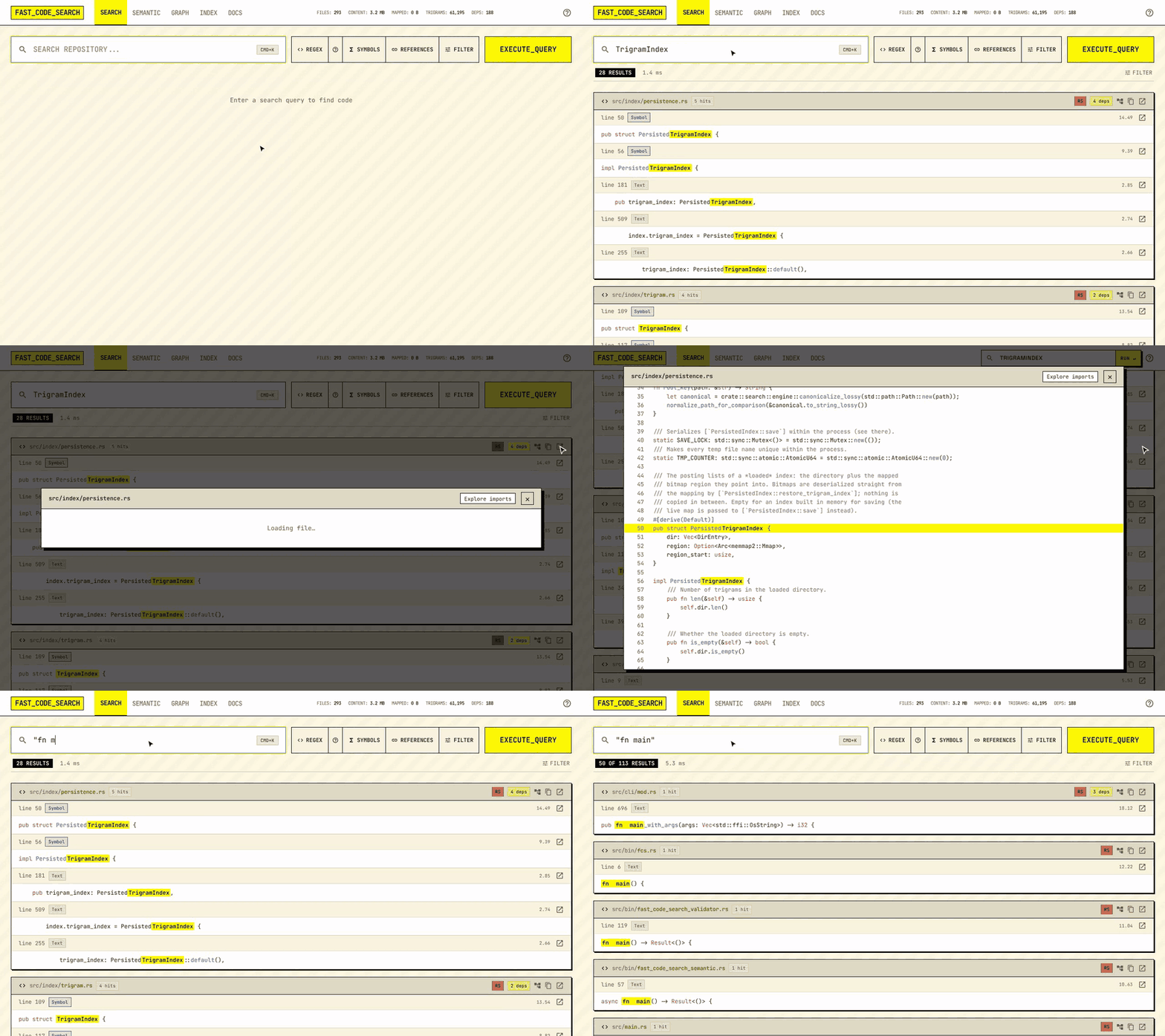
Searching
- Type and press Enter (or wait: the page searches as you type after a short
pause).
Ctrl/Cmd+Kfocuses the box from anywhere;/does too. Focusing the box lists recent searches (kept in this browser): one counts once you press Enter, pause for two seconds or move on to the results. - REGEX, SYMBOLS and REFERENCES switch modes; FILTER opens
page size, ranking mode, context lines and the path filters (SEARCH ONLY
IN and SKIP PATHS: globs separated by
,or;). While a path filter is set, FILTER shows a count and the summary line shows each filter with an × to remove it. Path filters are remembered between visits. - MATCH CASE (
Aa) matches upper and lower case exactly, in every mode; off, case is ignored in plain text and regex alike. The summary line says which applied (“ignoring case” or “matching case”). - What you type is searched for as written, like
rg -F: several words are one phrase, and quotes and a leading-are part of the text. The operatorsfile:src/,lang:rust,case:yesandword:yesnarrow it. - Results are grouped by file, best hit first, with every query term
highlighted from the server’s match offsets. Load more pages through
the rest; the summary line says how many matches exist and whether the
scan was cut short by its budget. Files are read best first; when the
server limits how many (
search.fast_rank_files), the summary says “Searched N of M files” and SEARCH ALL FILES opens the rest (or as many as the server allows). - Results are in rank order with each file’s hits together (see Ranking). A file cut at the end of a page says so: its badge reads “3 of 7 hits”, and Show 4 more hits in this file under its code fetches the rest in place. “7+” means the file reached the per-file cap and may hold more.
- Files whose path matches the query are listed in a FILES box above
the results, so typing or pasting
src/web/api.rs(or justapi.rs) finds the file even when no line mentions it. File names rank first; click a path to open the file. Five show at first, Show more lists up to fifty. Text and regex searches only. The count above the results includes them (“2 FILES · 1 RESULT”). - The URL carries the query and modes, so a link reproduces a search; Back returns to the previous one.
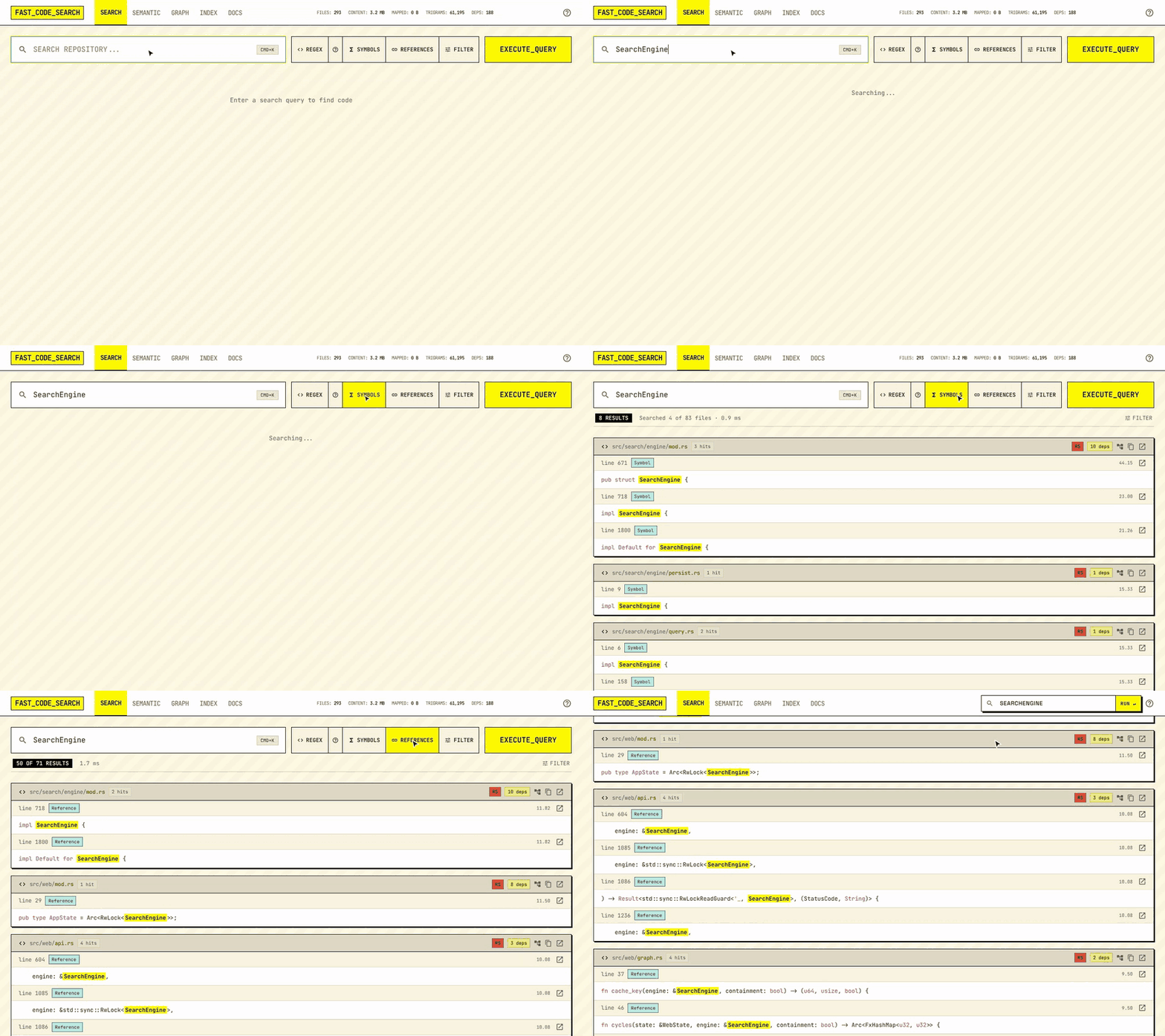
SYMBOLS keeps only the lines that define the name; REFERENCES lists every place it is used:
Regex help
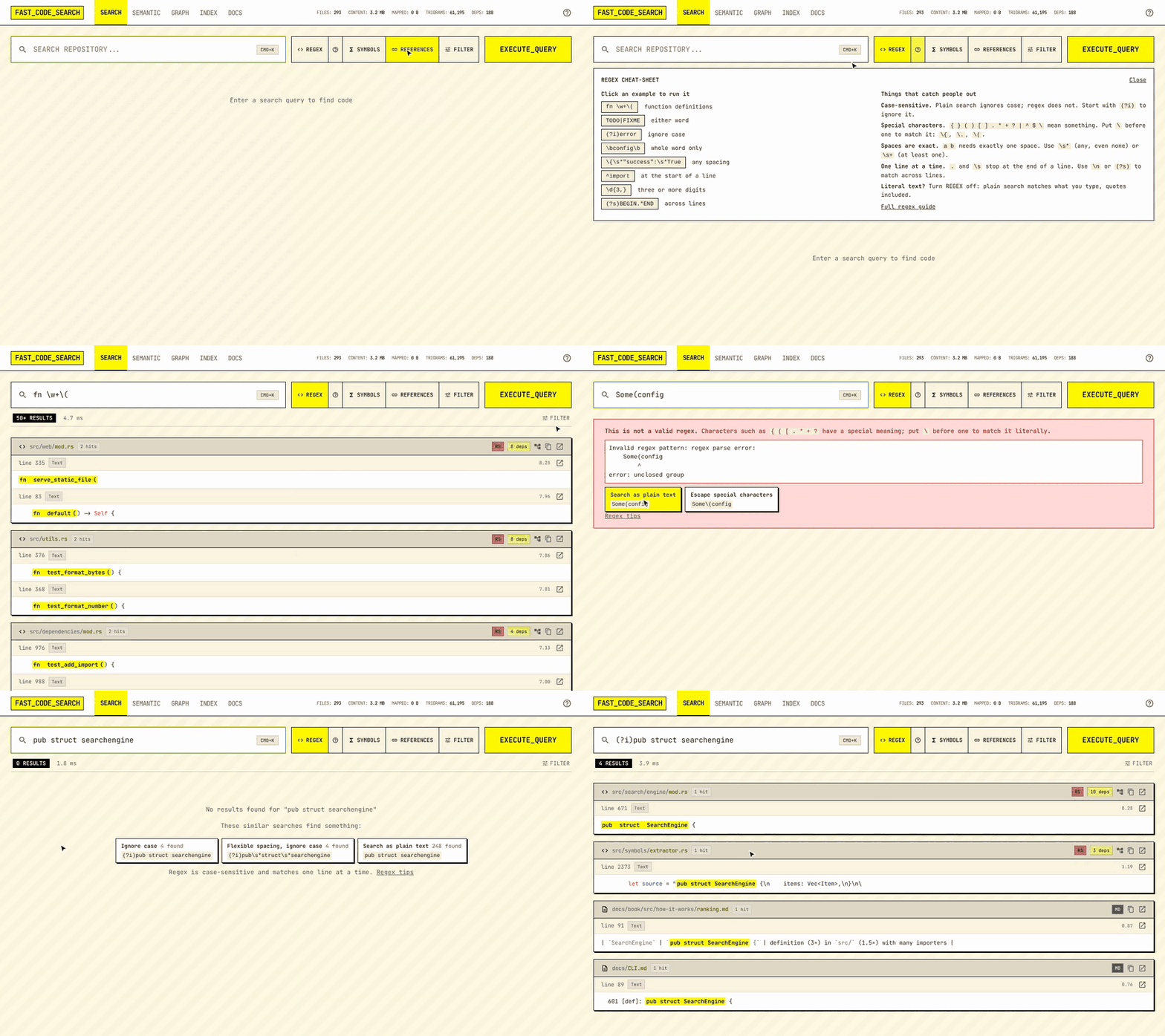
- The ? next to REGEX opens a cheat-sheet: common patterns you can
run with one click, and the rules that catch people out (regex is
case-sensitive,
{ ( . *and friends need a\to match literally, spaces are exact). - When a search finds nothing, the page tries close variants (flexible spacing, ignoring case, the same text without regex, or regex for a plain query that looks like one) and offers the ones that find something.
- An invalid regex shows where the pattern is wrong and offers to search the text literally or with its special characters escaped.
Reading results
- Each hit shows its line with the line number in a gutter and one line of context either side (change it under Filter: Match only up to ±5; the browser remembers your choice). Definitions and references are tagged. Hover the ↗ icon at the end of a hit to preview the whole file; click the icon (or anywhere in the preview) to keep it open until Escape, a click outside it or its ×. A kept preview does everything the file viewer does (go to definition, select a line, Copy link, Explore imports); Expand shows the same file in the large viewer. Click the line number to open the file there, or the file name to open it at its first hit; copy and the dependency explorer link show when you hover the file.
- The file viewer and the preview mark every line the query matches in a strip beside the scrollbar; click the strip to jump to the nearest one. Click a line number to select that line; Copy link copies a URL that reopens the search with the file at that line. Large files open in a window of lines with “Show more” at either end.
- Ctrl+click (⌘+click on a Mac) a name in the file viewer, the preview or a result to open its definition; holding the key underlines what you can click. One definition opens directly, several open a list, and a name with no definition is searched for as text. Each jump in the viewer leaves a Back step (also Alt+←). Double-click a name for a menu with Definition, References and Search.
- The deps chip on a file opens its importers and imports. The tree icon on a result (and Explore imports in the file viewer) opens the file in the dependency explorer.
j/kmove the keyboard selection, Enter opens it, Escape closes any dialog; the copy button puts the path on the clipboard.
Dependency explorer
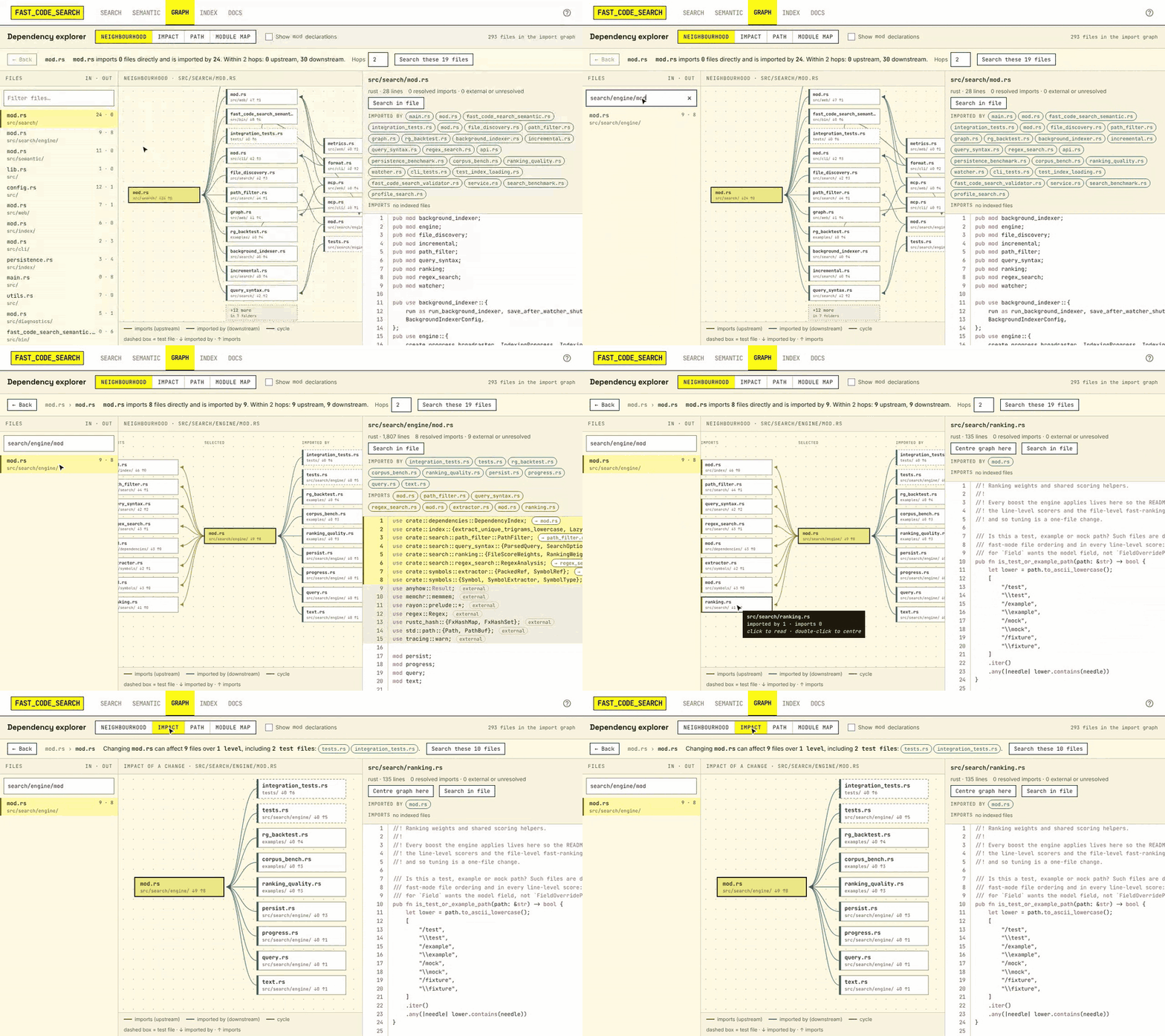
Graph (/graph.html) shows the import graph around one file, next to
its source. Pick a file on the left (most connected first) and switch view:
- Neighbourhood: what the file imports on the left, what imports it on the right, up to four hops each way. Busy levels fold into “+N more”; click to list them.
- Impact: every file a change could reach, level by level, and the test files among them.
- Path: the shortest chain of imports between two files.
- Module map: folders laid out so each only imports folders to its left; red marks import cycles.
Click a box to read the file (import lines are marked beside its scrollbar) and a line to open the import statement it stands for; double-click (or Enter) to centre the graph on it. Import lines in the source are highlighted and link to their target; imports of packages and the standard library are marked external. Search these files runs a keyword search limited to the files on screen.
Rust mod foo; declarations (and pub use foo::X re-exports of a child
module) are hidden by default since they are structure rather than
dependencies; Show mod declarations brings them back. Imports are
resolved for Rust, Python and JavaScript/TypeScript.
For JavaScript/TypeScript, tsconfig paths and baseUrl, workspace
packages imported by name and, without a tsconfig, the repository root are
followed; How the import graph is built
has the details.
Themes
The first time you open the UI it asks you to pick a theme; hover an option
to try it on the page (moving off it puts your theme back) and click it
to use it. Bold (the default) has capitalised labels and
hard edges; Corporate and Corporate dark are quieter, with sentence
case and rounded corners. Change it any time with the palette button in the
header, which previews on hover the same way. The choice is kept in your browser. On a shared server,
default_theme sets the theme for people who haven’t chosen one and
theme_picker = false skips the first-run question (see
Configuration).
Other pages
- Index (
/diagnostics.html): file counts, extension breakdown, the configuration in effect, and self-tests that search for sampled files. Its Service card says whether the web UI and gRPC started, where the index is saved (or that it is memory only or read-only), and any startup or storage problems. When there are some, the search page shows “Server started with N problems” with a link to it. - Docs (
/docs.html): a one-page cheat sheet (query operators, regex, keys,fcsand MCP, the main API calls) with links into this book.
The UI talks to the same /api/search you can call yourself, so anything
it shows is available to scripts.